I've done this setup on hundreds of stores, and the first time always feels bigger than it is. The actual work is maybe two hours; the confusion comes from doing six small things across four different dashboards. Here's every step in order, plus the four failures that hit almost every first run.
What are you actually building?
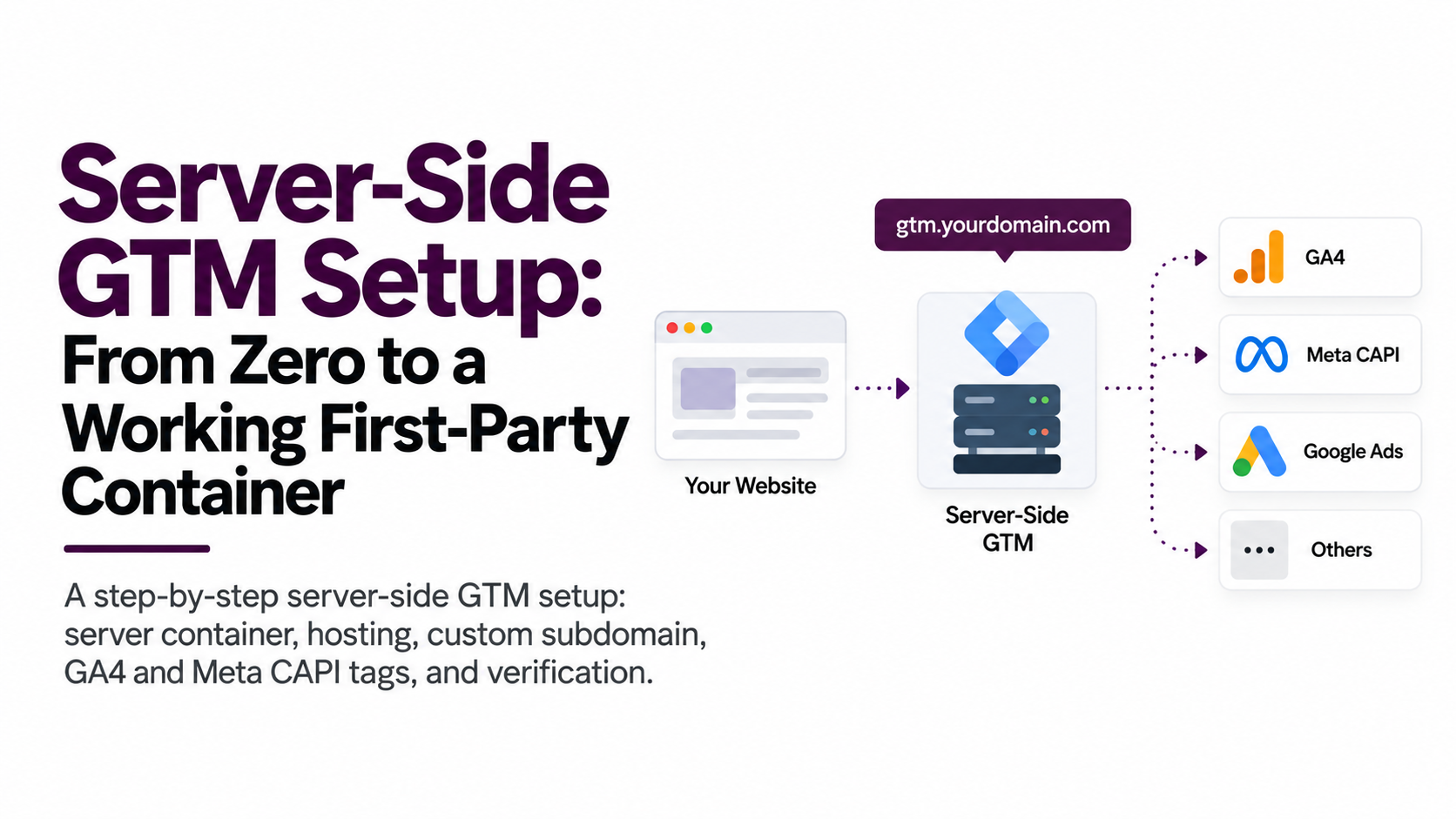
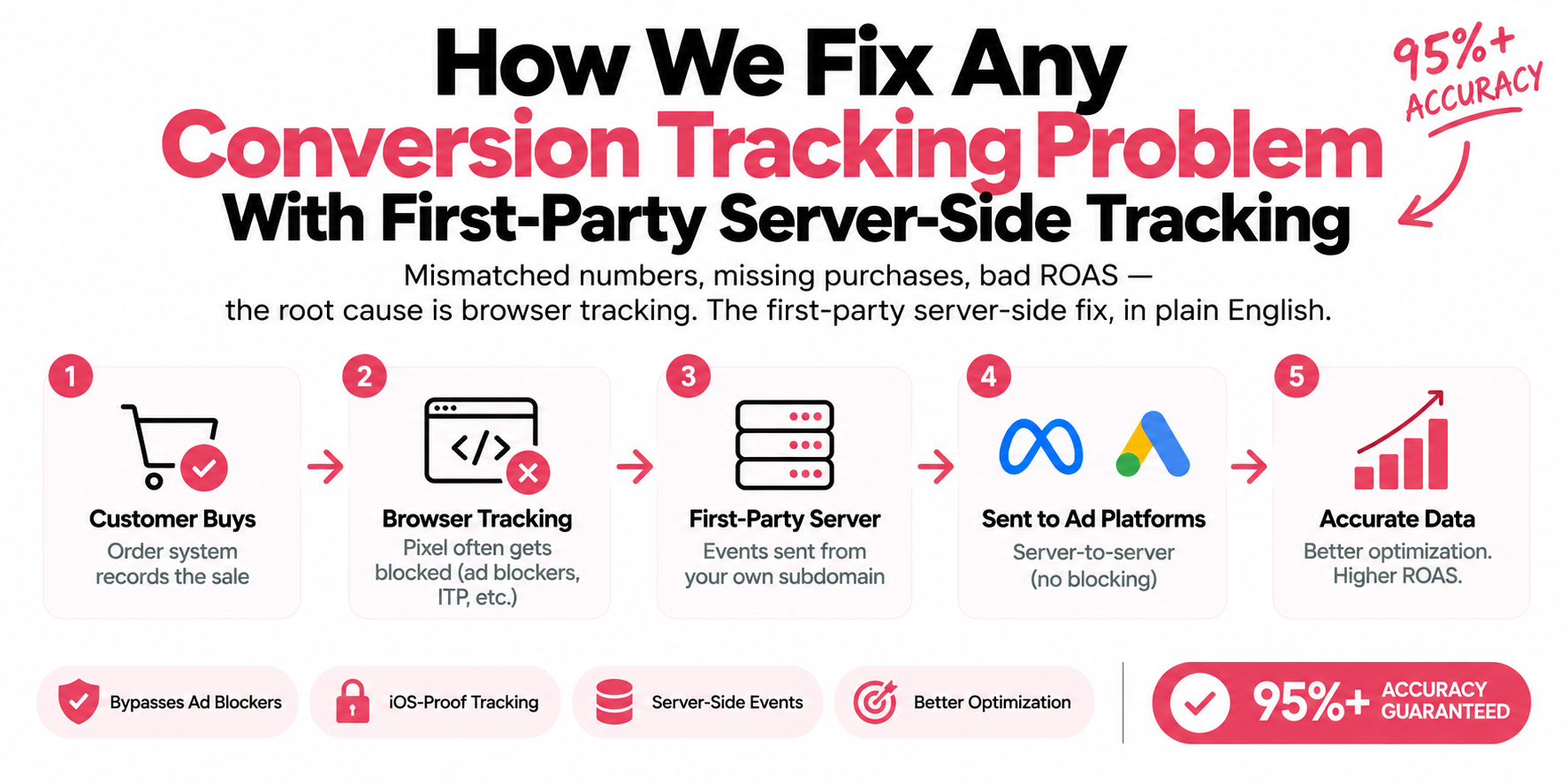
You're building a small server that sits between your website and the ad platforms. Right now your visitor's browser talks directly to Google and Meta, and browsers are bad messengers: ad blockers kill the requests, and Safari's tracking prevention (ITP) caps JavaScript-set cookies at 7 days. Server-side GTM changes the route. The browser sends one stream of events to a subdomain you own — gtm.yourdomain.com — and your server forwards clean, complete data to GA4, Meta, and Google Ads from there. Your current numbers are wrong because the browser leg keeps failing. This moves the important leg off the browser.

- Create a Server container — GTM Admin, Create Container, target platform Server — alongside your web container
- Host it — Managed hosting like Stape, or Google's tagging image deployed on Cloud Run
- Map gtm.yourdomain.com — Add the CNAME or A records, wait for SSL, then add the URL in container settings
- Set server_container_url — One field on the Google tag in your web container, then publish both containers
- Verify, do not assume — /g/collect 200s on your subdomain, and matching event_id in Meta Events Manager
How do you create the server container in GTM?
- Go to tagmanager.google.com, open your account, and click Admin → Create Container.
- Name it something obvious ("yourdomain.com - Server") and pick Server as the target platform. This is a second container alongside your existing web container, not a replacement.
- GTM asks how you want to provision the tagging server. Automatically provision spins up a single instance on Google's cloud tied to a billing account — fine for testing, not sized for production (Google's docs estimate roughly $40 per instance per month). Pick manually provision if you're going with Stape or your own Cloud Run deployment.
- Either way, copy the container config string from Admin → Container Settings. Your host needs it.
That's it. The container exists. It just has nowhere to live yet.
Should you host on Stape or Cloud Run?
Stape (managed hosting). Stape runs the tagging server for you: paste your container config, pick a server location, done in about five minutes. You get a free tier for low volume, custom domain setup with automatic SSL, EU-hosted options for GDPR data residency, and add-ons like a custom loader that helps your tags survive stricter ad blockers. The honest trade-off: another vendor, another subscription, and pricing that scales with request volume. For most store owners, worth it — you're paying to never think about server operations.
Google Cloud Run (self-hosted). Cloud Run deploys Google's official tagging server image inside your own Google Cloud project. Everything stays in your GCP account, low-traffic sites can run cheaper than managed hosting, and you control regions, scaling, and logs directly. The trade-off: you own it. You'll set minimum instances to avoid cold starts, update the server image when Google ships new versions, and debug deployments yourself. Comfortable in GCP? Fine choice. If "minimum instances" made your eyes glaze, use Stape.

| Default host URL | gtm.yourdomain.com |
|---|---|
| Browsers treat it as third-party | Same root domain as your site |
| Cookies still capped at 7 days | Server-set HttpOnly cookies |
| Ad blocker lists still match it | Blocklists have nothing to match |
| Attribution resets every week | One pipeline, gated on consent |
How do you map gtm.yourdomain.com — and why is the subdomain the whole point?
You add one DNS record so a subdomain of your own site points at your tagging server. Skip this and you've built an expensive detour: your server answers on a default URL like something.stape.io or something.run.app, browsers treat it as third-party, and you keep every cookie and blocking problem you started with.
- Pick a subdomain on the same root domain as your website. gtm.yourdomain.com, ss.yourdomain.com, data.yourdomain.com — the name doesn't matter, the shared root domain does.
- In your DNS panel (Cloudflare, your registrar, wherever your records live), add the record your host gives you: Stape shows you either a CNAME target or a set of A records; Cloud Run's domain mapping shows you the records to add. Copy them exactly.
- Wait for the host to verify DNS and issue the SSL certificate — usually minutes, occasionally an hour.
- Back in GTM, open the server container's settings and add https://gtm.yourdomain.com under server container URLs.
Here's why this one DNS record carries the whole setup. When tracking requests go to gtm.yourdomain.com, the browser sees traffic to your own site — first-party. Your server can set cookies on .yourdomain.com as proper server-set, HttpOnly cookies, which escape ITP's 7-day cap on JavaScript-set cookies. A Safari visitor who comes back in week three is still recognized as the same person instead of a brand-new anonymous user, so attribution stops resetting itself. Ad blockers that blocklist googletagmanager.com and connect.facebook.net don't touch your subdomain by default, so events that used to die in the browser actually arrive. And because every platform now gets fed from one server pipeline you control, you decide exactly what's shared — per the visitor's consent choice — instead of letting each vendor's script grab what it wants. One Safari note: its CNAME-cloaking defense caps cookies set through subdomains that resolve to known third-party hosts, which is why some hosts offer A-record setups instead of a CNAME. Take the A records when offered.
How do you point your web container at the server URL?
One field change in your existing web container reroutes your Google tags. Open the Google tag (the GA4 tag) in your web container, and under Configuration settings add the parameter server_container_url with your new URL:
// Google tag → Configuration settings
server_container_url: "https://gtm.yourdomain.com"
Publish, and every GA4 hit from the browser goes to your subdomain instead of straight to Google. In the server container, the built-in GA4 client claims those requests and turns each one into a clean event object your server-side tags can read. It's enabled by default — you shouldn't need to touch it.

| Layer | What sits there |
|---|---|
| Inputs | Web container Google tag, server_container_url set, Browser Pixel event_id |
| gtm.yourdomain.com | The built-in GA4 client claims each request and builds one clean event object |
| Destinations | GA4, Meta CAPI (Pixel ID + token), Google Ads Enhanced Conversions |
Which server-side tags do you add first?
Three tags cover most businesses, in this order.
- GA4. Add a GA4 tag in the server container, fire it on all events from the GA4 client. This forwards your analytics data on to Google so GA4 keeps working exactly as before — just via your server now.
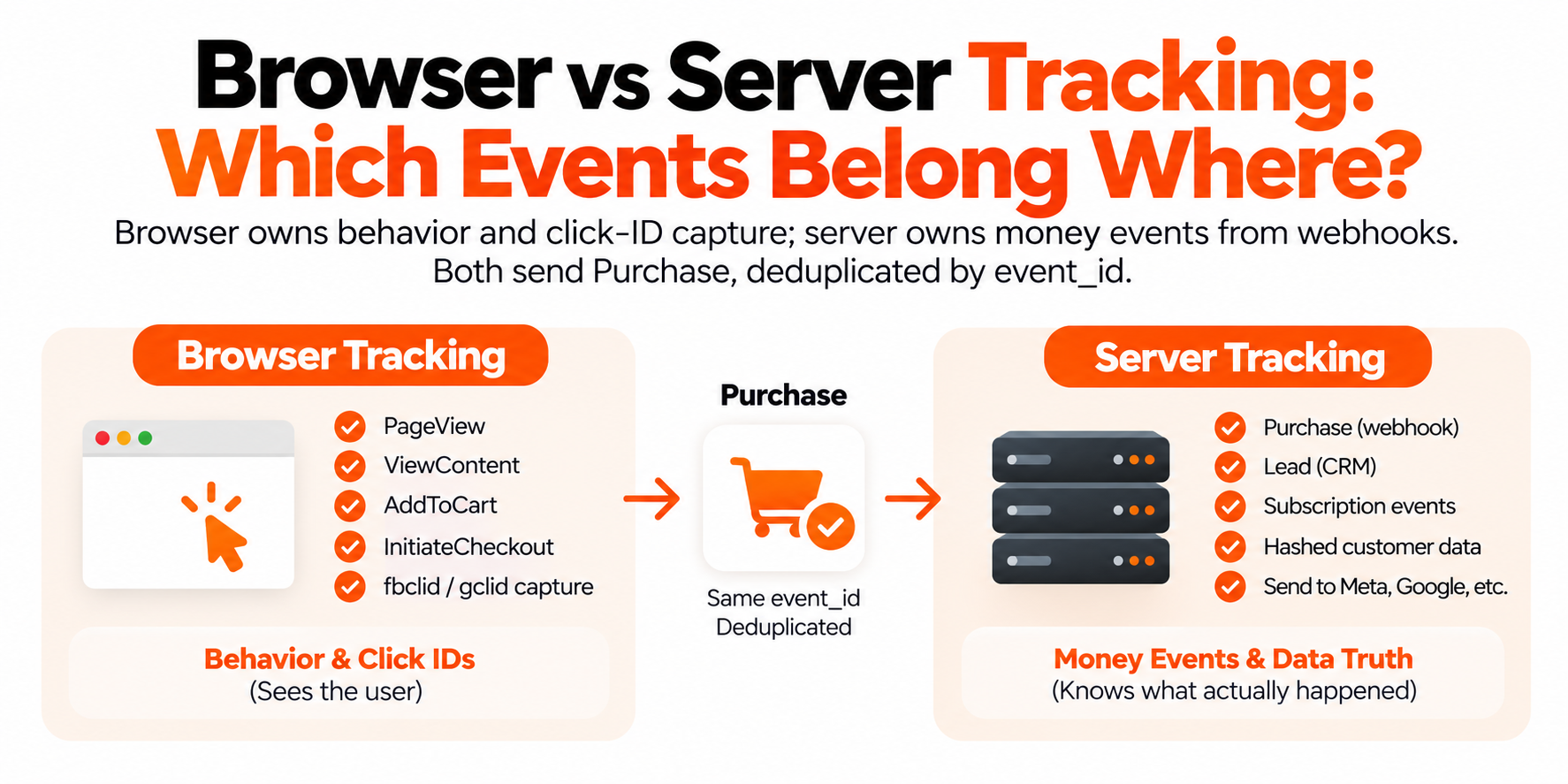
- Meta Conversions API. Install Meta's official Conversions API tag template from the GTM template gallery. It needs your Pixel ID and an access token, which you generate in Events Manager under Settings → Conversions API. Fire it on the events Meta cares about — Purchase, AddToCart, Lead — and make sure the
event_idfrom your browser Pixel rides along, because Meta deduplicates browser and server events by matching event name plus event_id. Keep the browser Pixel running; the pair is the design. - Google Ads. Add the server-side Google Ads Conversion Tracking tag with your conversion ID and label. If you capture email at checkout, pass it through for enhanced conversions — Google matches the hashed email to signed-in users and recovers conversions the cookie alone would miss.
How do you preview across both containers?
You run two debug sessions at once, and order matters: start the server preview first. Click Preview in the server container — it opens a debug view that sits waiting for requests. Then click Preview in your web container, which opens Tag Assistant on your site. Browse in that window and watch both screens: the web debugger shows your Google tag firing to gtm.yourdomain.com, and the server debugger shows the request arriving, the GA4 client claiming it, and each server tag firing or not.
How do you verify the setup is actually working?
Three checks, five minutes.
- Requests hit your subdomain. Open your site with DevTools → Network, filter by your subdomain. You should see /g/collect requests going to gtm.yourdomain.com returning 200 or 204 — and nothing going straight to region1.google-analytics.com from the Google tag anymore.
- Events arrive in platform debug views. GA4's DebugView should show events in real time. In Meta Events Manager, open Test Events, add the test event code to your CAPI tag, and confirm server events landing alongside browser events.
- Dedup works. Still in Events Manager, open a Purchase event's details. Browser and server versions should share the same event_id, with Meta marking one as deduplicated. Two Purchases with different event_ids means double counting — fix the event_id plumbing before you trust a single number.
What breaks on the first run?
Cookies set on the wrong domain. The classic: everything "works" but you're still on the default stape.io or run.app URL, so cookies are third-party and you've gained nothing. Serve from a subdomain of your site's root domain, full stop — and if your site spans multiple root domains, each needs its own tagging subdomain.
Preview confusion. Events show in live GA4 but not the server preview (missing preview header — see above), or both previews look perfect and nothing flows after publish. For the second one: check you actually published both containers. Happens to everyone once.
Consent not forwarded. Google's requests carry Consent Mode v2 signals automatically, but your Meta CAPI tag doesn't read them by itself. Gate it on the visitor's marketing consent explicitly, or you'll send server events for people who opted out. With Consent Mode v2 enforced across the EEA, this isn't optional.
Blocks and regions. The strictest ad-blocker lists flag known server-side tagging paths and default loader patterns even on custom domains — managed hosts like Stape offer custom loaders that help. Separately, pick a server region near your audience; for EEA visitors, EU hosting keeps data residency clean.
Frequently asked questions
Do I need a server container in addition to my web container?
Yes. The web container keeps collecting events in the browser; the server container receives them and forwards clean data to the platforms. They're a pair — server-side GTM doesn't replace your web container.
How much does server-side GTM hosting cost?
Managed hosts like Stape start free for low volume and scale with requests. Google's auto-provisioned setup runs roughly $40 per instance per month, and self-hosting on Cloud Run can be cheaper for small sites if you manage it yourself.
Can I skip the custom subdomain and use the default URL?
Technically yes, practically no. On a default stape.io or run.app URL your tracking is still third-party, so cookie limits and ad blockers hit it the same as before. The subdomain is what makes the setup first-party.
Does server-side GTM replace the Meta Pixel?
No — best practice is browser Pixel plus Conversions API together, sharing an event_id so Meta deduplicates. The server event covers what the browser drops; the browser event carries signals the server alone doesn't have.
How long does server-side GTM setup take?
With managed hosting, an experienced person does the core setup in two to three hours. First-timers should budget a day, mostly for DNS propagation and dedup testing.
Does server-side tracking work with Consent Mode v2?
Yes. Consent signals travel with the Google requests into your server container, and you can gate non-Google tags like Meta CAPI on the same consent state. Server-side gives you more control over consent handling, not less.
Will this improve my ad performance or just my reporting?
Both. Platforms optimize on the conversion data they receive, so fuller, better-matched data lets Meta and Google target more accurately — which commonly shows up as cheaper CPAs over time.