Your Meta Pixel is the foundation of everything that matters in your Facebook and Instagram ad campaigns. It tracks conversions, powers your retargeting audiences, feeds data to the optimization algorithm, and measures ROAS. When it breaks, your campaigns don't immediately stop running — they just start bleeding money.
The insidious part is that pixel issues rarely announce themselves. Your ads keep running, your dashboard looks normal, and you don't realize you've been optimizing toward incomplete data until weeks or months later when you notice your actual sales don't match what Meta is reporting.
This guide covers the most common Meta Pixel problems we see in client accounts, how to diagnose them, and how to fix them before they cost you serious money.
Issue #1: The Pixel Isn't Firing at All
This is the easiest problem to have and the easiest to miss. Your pixel is installed in your site's code, but it's not actually sending any events to Meta.
How to diagnose it
Install the Meta Pixel Helper Chrome extension, then navigate to your website. If the extension shows no pixel activity or displays a "No Pixel Found" message, the pixel isn't firing.
You can also check Events Manager in your Meta Business account. Go to the Data Sources tab, click your pixel, and look at the Activity section. If you're getting traffic but seeing zero events, the pixel isn't working.
Common causes
The pixel code is in the wrong place. It needs to be in the
<head>section of every page, not buried in a footer or inside a specific page template.Your tag manager isn't publishing. If you installed the pixel via Google Tag Manager, the container needs to be published. Preview mode doesn't count.
Ad blockers are blocking it locally. If the pixel shows up in Pixel Helper when you test with ad blockers disabled but disappears with them on, the pixel is working — but a portion of your real users are blocking it (typically 20-40% of traffic).
The pixel ID is wrong. Double-check that the pixel ID in your code matches the pixel ID in Events Manager.
How to fix it
If you're installing the pixel manually, copy the base code from Events Manager and paste it directly into your site's global header template. Test on a live page (not localhost) with Pixel Helper to confirm it fires.
If you're using GTM, make sure:
- The Facebook Pixel tag is configured with the correct pixel ID
- It's set to fire on "All Pages" (or at minimum, your key conversion pages)
- The GTM container is published and live on your site
Issue #2: Duplicate Pixel Fires
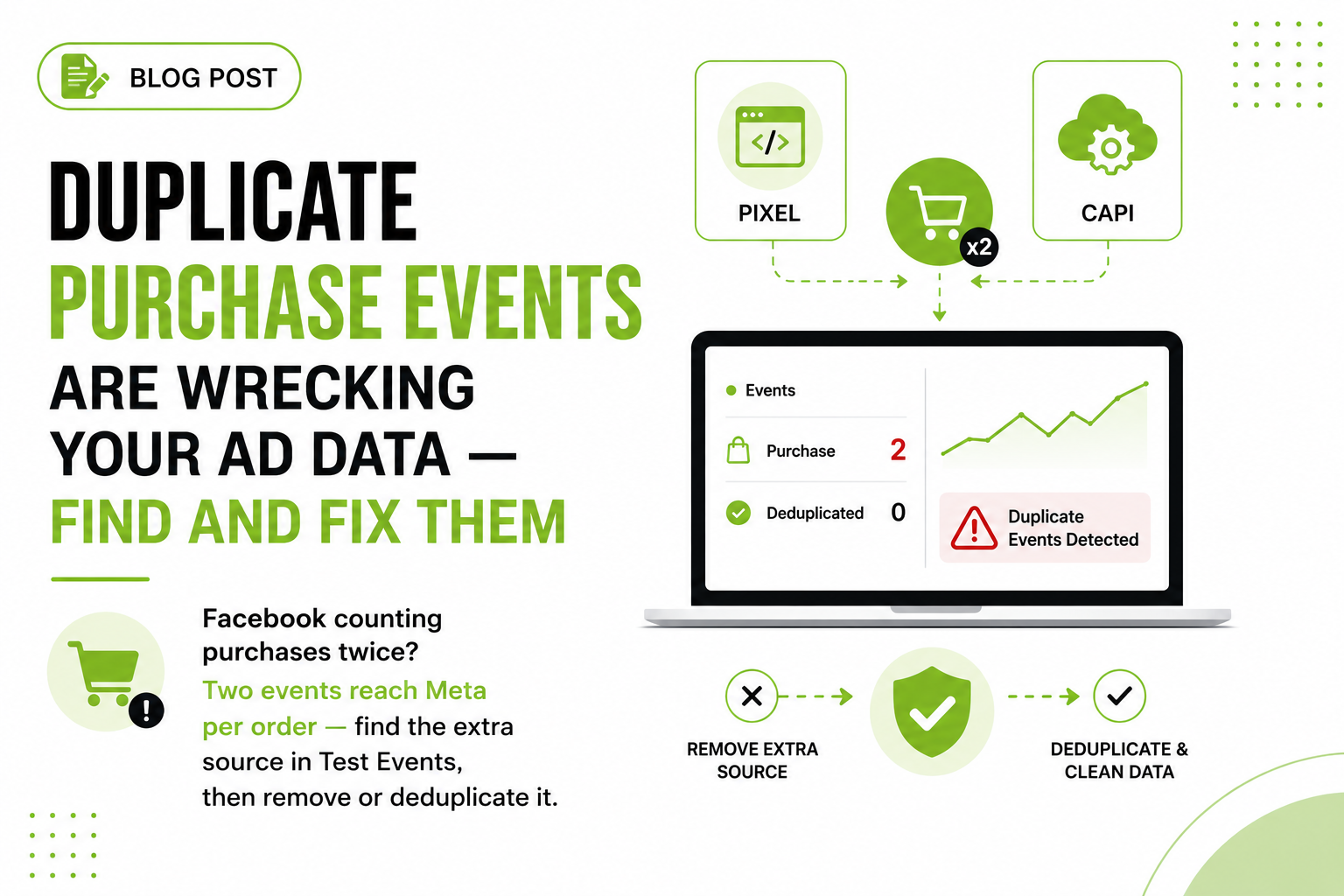
The opposite problem: your pixel is firing multiple times for the same event, inflating your conversion numbers and teaching the algorithm the wrong lessons.
How to diagnose it
Use Pixel Helper on a conversion page (checkout confirmation, lead form thank-you page, etc.). If you see the same event firing twice in the extension's log, you have duplicates.
You can also spot this in Events Manager. Go to Test Events, enter your website URL, and complete a test conversion. If the Purchase event or Lead event shows up twice with the same timestamp, it's firing multiple times.
Common causes
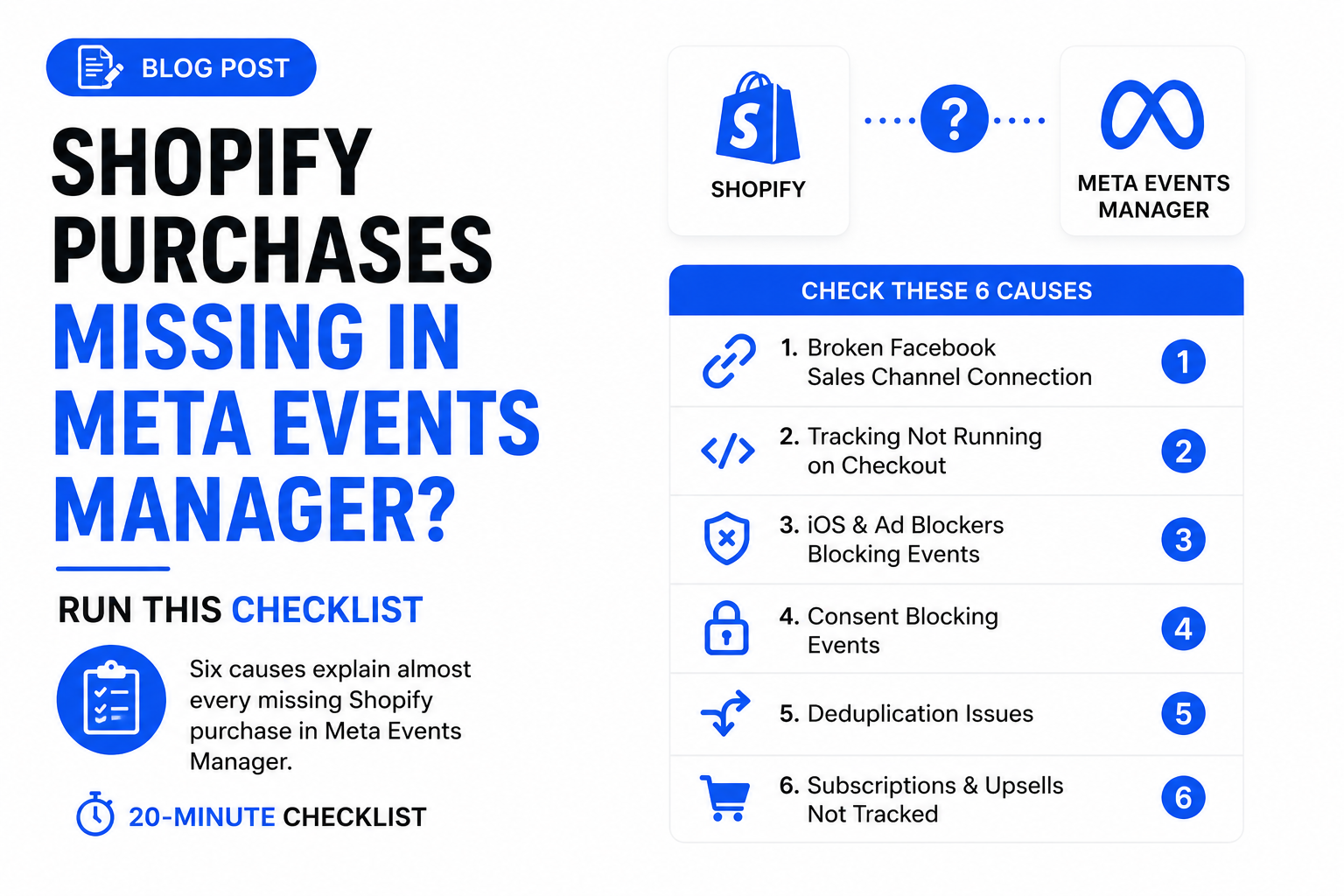
Pixel installed in two places. Both hardcoded in the theme AND added via GTM. Or installed via a Shopify app AND also manually.
Conversion page is reloadable. The thank-you page URL doesn't have a unique order ID or session token, so users refreshing the page trigger the event again.
Multiple GTM tags for the same event. Two different Purchase tags firing on the same trigger.
How to fix it
Audit everywhere the pixel might be installed. Check:
- Your site's theme files (header.php, base template, etc.)
- Google Tag Manager
- Platform-specific integrations (Shopify Meta app, WooCommerce settings, etc.)
- Third-party apps that promise to "auto-install" the pixel
Pick ONE method and remove the others. For most setups, GTM is the best choice because it centralizes everything and makes debugging easier.
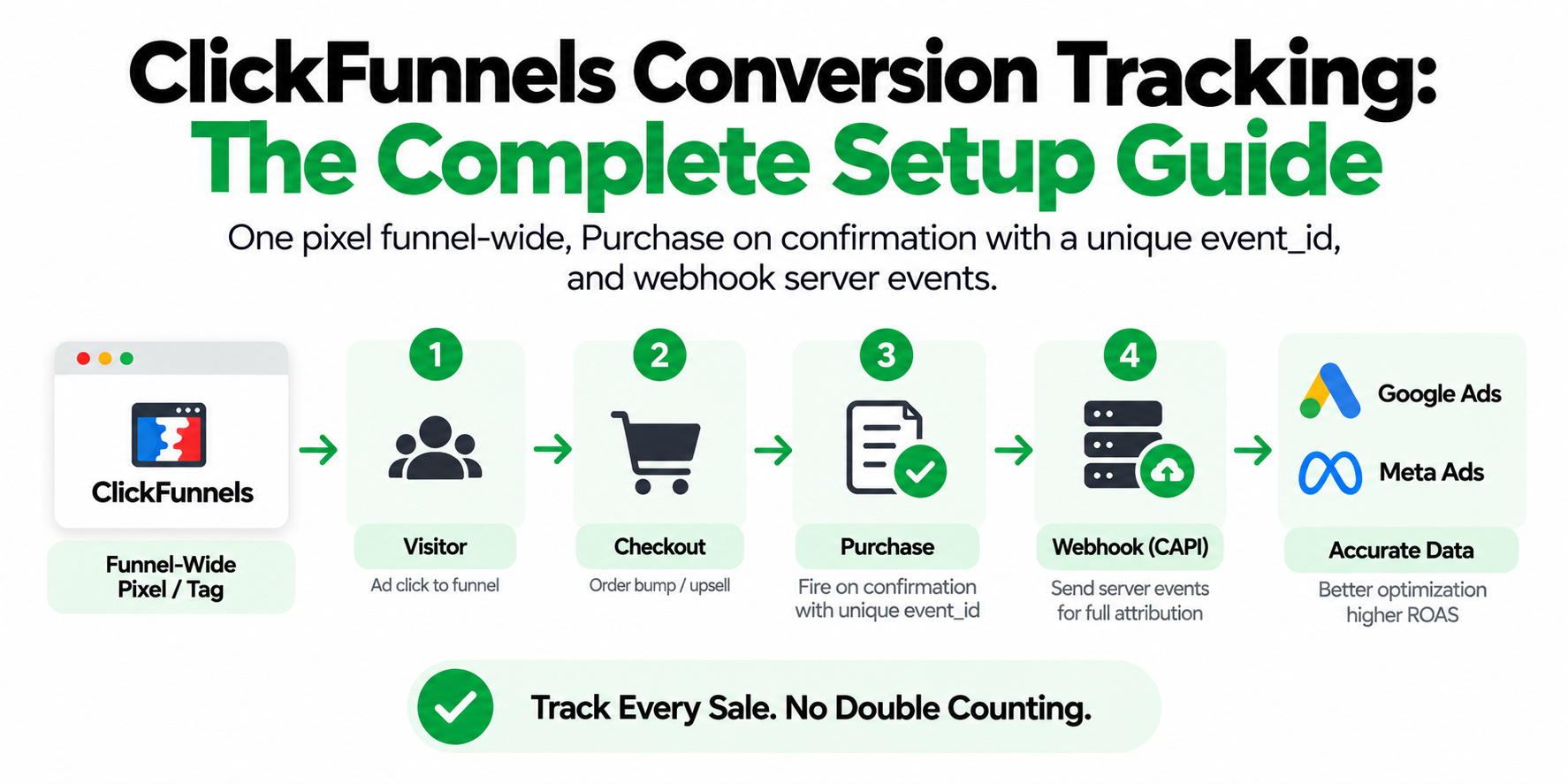
For the reloadable thank-you page issue, make sure your confirmation page uses a unique URL parameter (like order ID) or implement deduplication via event_id parameters in your pixel code.
Issue #3: The Pixel Fires, But Conversions Don't Match Reality
This is the most common and most damaging issue. Your pixel is working, Events Manager shows conversions, but the numbers don't align with what actually happened.
How to diagnose it
Compare your pixel-reported conversions in Ads Manager to your actual backend data: completed orders in Shopify, form submissions in your CRM, phone call logs, etc.
If Meta reports 100 conversions but your store only processed 70 orders, something is broken. If Meta reports 50 conversions but you had 90 orders, something else is broken.
Common causes
Over-reporting (pixel says more conversions than actually happened):
- The Purchase event is firing on the cart page or product page instead of the order confirmation page
- The Lead event fires when someone views the form, not when they submit it
- Bot traffic or test orders are being counted as real conversions
Under-reporting (pixel says fewer conversions than actually happened):
- iOS 14.5+ users who opted out of tracking (roughly 60-70% of iOS users)
- Users with ad blockers (20-40% of desktop traffic)
- Users clearing cookies or browsing in private mode
- Cross-device conversions where the click happens on mobile but the purchase happens on desktop
- Conversions happening outside the attribution window (7-day click, 1-day view is the default)
How to fix it
For over-reporting: audit exactly where your conversion events are firing. Use GTM Preview Mode or Pixel Helper to walk through a full purchase or lead submission flow and verify the event only fires at the final confirmation step.
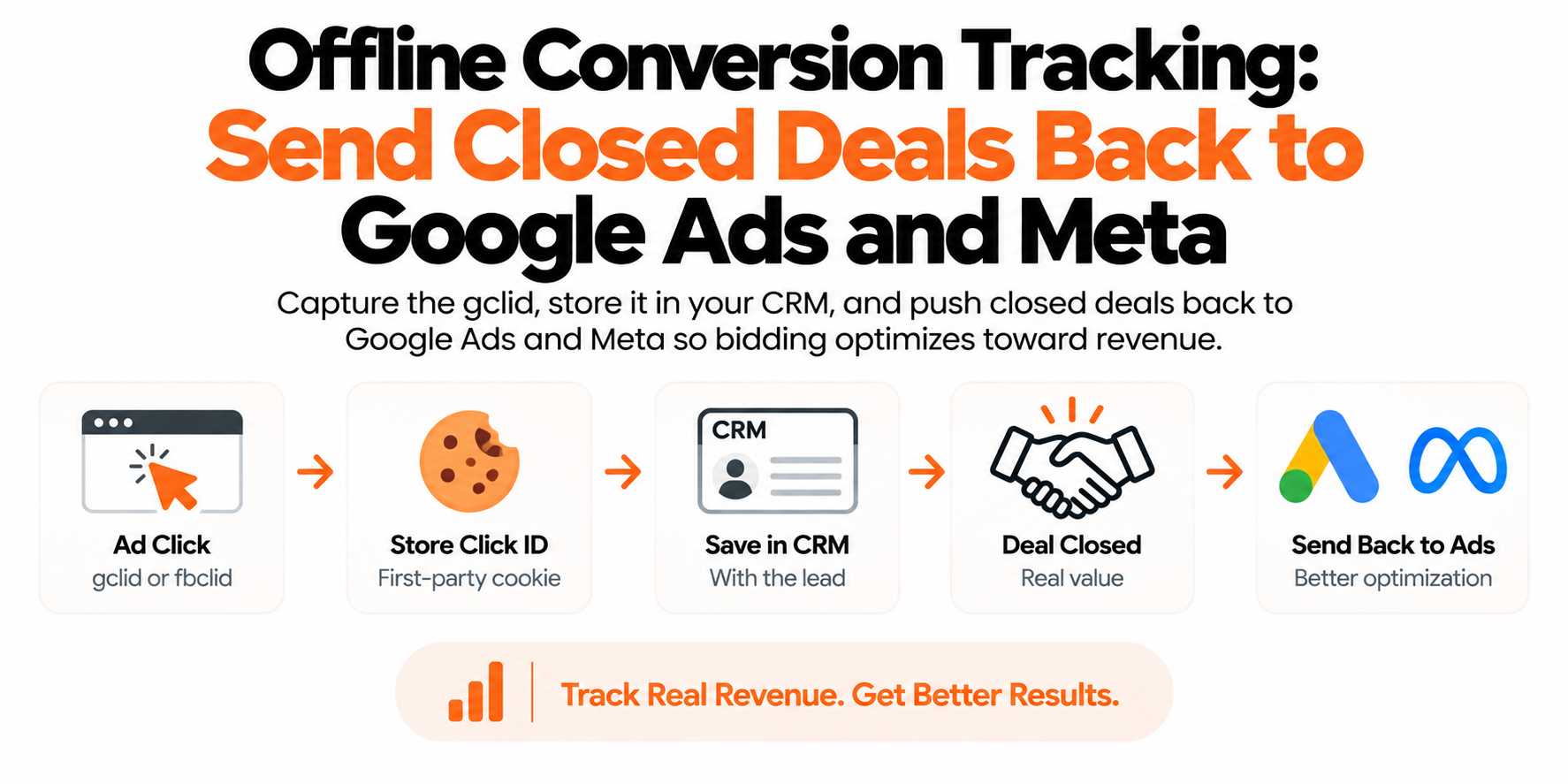
For under-reporting: implement the Conversions API. This is Meta's server-to-server tracking method that bypasses browser-based limitations. It's the single most impactful upgrade you can make to Meta tracking in 2026.
The Conversions API sends the same event data your pixel captures, but from your server to Meta's servers. Because it doesn't rely on the user's browser, it's not affected by ad blockers, iOS restrictions, or cookie deletion. Most advertisers see a 20-40% increase in attributed conversions after implementing it properly.
Issue #4: Parameter Data Is Missing or Wrong
The pixel fires, the event shows up in Events Manager, but critical parameters like purchase value, currency, or content_ids are missing or incorrect.
How to diagnose it
In Events Manager, go to Test Events and trigger a conversion. Expand the event details and check the parameters. For a Purchase event, you should see:
value(the purchase amount)currency(USD, EUR, etc.)content_ids(the product IDs or SKUs purchased)content_type(usually "product")
If any of these are missing, set to zero, or showing the wrong values, your pixel implementation is incomplete.
Common causes
Dynamic variables aren't pulling correctly. Your GTM setup references a data layer variable that doesn't exist, or the variable is spelled wrong.
Hardcoded test values. Someone set the purchase value to "1" during testing and never changed it back.
Currency mismatch. Your store uses GBP but the pixel is hardcoded to USD.
Content IDs are missing. The pixel fires but doesn't know which products were purchased, breaking dynamic product ads and retargeting.
How to fix it
If you're using GTM, make sure your data layer is properly configured and firing before the pixel tag. Use GTM Preview Mode to inspect the data layer values at the moment the tag fires.
For ecommerce platforms like Shopify, WooCommerce, or BigCommerce, use the platform's native Meta integration if available — these handle parameters automatically. If you're building custom code, reference Meta's official parameter documentation to ensure you're passing the right keys and formats.
Issue #5: Consent Mode Is Blocking Tracking
If you operate in the EU, UK, or California, you likely have a cookie consent banner. If it's not configured correctly, it might be blocking your pixel from firing for users who decline cookies — which is most users.
How to diagnose it
Test your site in an EU region (or use a VPN). Decline all cookies on your consent banner, then navigate to a conversion page. Check Pixel Helper. If the pixel doesn't fire at all, your consent setup is overly restrictive.
How to fix it
Implement Meta's Advanced Matching and ensure your consent banner is integrated with your tag manager. Tools like OneTrust, Cookiebot, or Iubenda can conditionally fire pixels based on user consent.
Even better: set up the Conversions API, which doesn't require browser cookies and works regardless of consent choices (as long as you're collecting first-party data like email addresses legitimately).
Issue #6: Custom Conversions Aren't Triggering
You set up a custom conversion in Events Manager (like "Lead - High Intent" based on URL rules), but it never records any conversions even though people are reaching that URL.
How to diagnose it
Go to Events Manager → Custom Conversions and check the rule you defined. Then visit the URL or trigger the event that should match the rule. Use Pixel Helper to confirm the base PageView event fires on that page. If the base event fires but the custom conversion doesn't register, the rule is wrong.
Common causes
URL rule is too specific. You set the rule to match
example.com/thank-youexactly, but the actual URL isexample.com/thank-you?order=12345.The rule references the wrong event. You're trying to create a custom conversion from a Lead event, but your form is actually firing a Contact event.
How to fix it
Edit the custom conversion rule to use "URL contains" instead of "URL equals" if your URLs have query parameters. Verify that the base event your custom conversion depends on is actually firing on the right pages.
A Systematic Pixel Audit Checklist
Run through this checklist quarterly (or immediately if you suspect tracking issues):
Install Pixel Helper and test every key page: homepage, product pages, add-to-cart, checkout, confirmation.
Trigger a test conversion and watch it flow through Events Manager → Test Events in real time.
Compare Meta-reported conversions to your backend numbers for the past 7 days. Variance of 10-20% is normal due to attribution differences. Variance beyond that signals a problem.
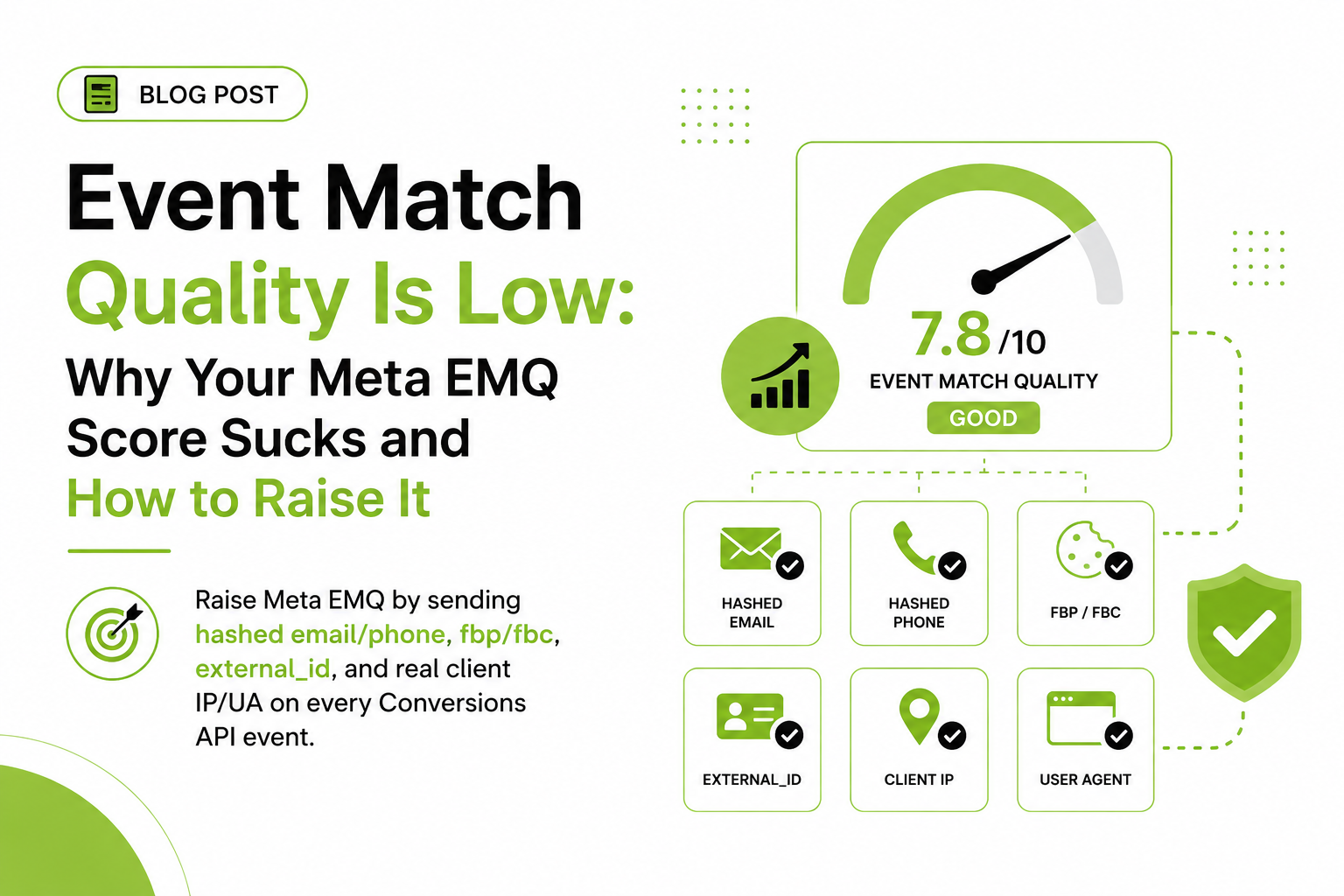
Check Events Manager for event match quality. A score below 6.0 means you're missing critical data that would improve tracking accuracy.
Review custom conversions and custom audiences. Make sure rules are still valid after any site redesigns or URL structure changes.
Test cross-device and logged-out scenarios. Complete a test conversion on mobile without being logged into Facebook, then check if it attributes correctly.
The Single Most Important Fix: Conversions API
If you take one action from this guide, implement the Conversions API. It solves or mitigates most of the under-reporting issues that plague browser-based tracking in 2026.
For Shopify, use the official Meta app — it handles CAPI automatically. For WooCommerce, use the official Facebook for WooCommerce plugin. For custom platforms, you'll need to integrate the API via server-side code or a middleware tool like Segment or Zapier.
The investment pays for itself within weeks by giving your campaigns access to conversion data they were previously blind to, which directly improves optimization and ROAS.
Wrapping Up
Pixel issues are silent killers. Your campaigns keep running, your spend keeps growing, but you're optimizing toward bad data — or no data at all. Fixing tracking doesn't make your ads better, but it makes every other optimization decision you make actually mean something.
Install the tools (Pixel Helper, Events Manager, GTM Preview Mode), run the tests, compare the numbers to ground truth, and fix what's broken. Then set a calendar reminder to audit it again in 90 days, because sites change, tags break, and tracking rots if you don't maintain it.